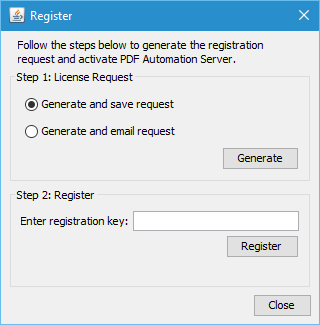
When running in demo mode, a watermark will be added to documents upon saving them. To run in full production mode, PDF Automation Server needs to be activated with a license key. If you have not yet purchased a license you can do so by going to http://www.qoppa.com/pdfautomation/buy/ or clicking on the "Buy Now" button in the startup dialog of PAS Manager. Otherwise follow the steps below to activate your product.
After you make your purchase, you will need to first generate a license request so that the license key can be created for the specific server. To generate a license request follow the steps below.
Once you receive the license key, launch the PAS Manager, and a dialog will show up where you can click on the "Register" button. Then enter the registration key provided to you via email and click "Register". Once the license is validated the dialog will close and the PAS log will display "License key validated, now running Production Mode" confirming that PAS is now activated.