The PDF Automation Server runs as a service on Windows, and as a daemon on other operating systems. By default, the server will use port 8093 to communicate with the PAS Manager. In order to run the server on a different port, stop the server and modify HttpPort attribute (HttpsPort for secured server) in the PASProp.xml settings file. The PASProp.xml is located in the directories below based on your OS.
Note: The server must be stopped prior to editing this file. The PASProp.xml file will not be created until the server stopped and when the file is created will overwrite the current PASProp.xml file with the current settings in PAS.
During installation, there is an option to run the QoppaPAS service automatically on startup. This can be modified later in the Windows Service Manager Console, as well as start and stop the QoppaPAS service. Additionally, there is a command-line executable in the installation folder named QoppaPAS.exe that allows you to start, stop, and get the status of the QoppaPAS service.
Usage: QoppaPAS.exe {-start|-stop|-status}
Note: In Windows Vista and Windows 7, due to permissions issues, you will need to run the command line shell (cmd) as administrator to stop and start QoppaPAS.
During installation, the start/stop script for the QoppaPAS daemon is copied to the installation folder.
Usage: sudo service QoppaPAS {start|stop|status}
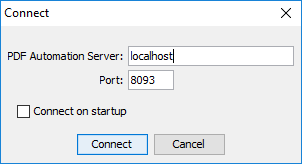
PAS Manager is the graphical interface that connects to the server used to create jobs and update server settings. The PAS Manager can be started from the desktop icon or from the PAS Manager launcher in the installation folder. After starting the PAS Manager, the Connection Dialog is displayed to set the server you wish to connect to.
Enter the IP address or HostName and Port of the server you wish to connect to. If you installed both the server and manager this will default to "localhost". If you just installed the manager you will need to use the IP address or HostName and Port (default 8093) of the remote server.
Note: If you are connecting to the localhost and the PDF Automation Server is not running, you will be prompted to start the server. By default, the server uses port 8093. If the server has been modified to use a different port, enter the new port number.
Once connected to the PDF Automation Server, the Project Console is displayed with the jobs in the top portion and the log displayed in the lower portion.
The Jobs List panel displays a list of jobs on the server as well as their current status. It also has buttons to manage and create new jobs (new, edit, start/stop, delete).
New: Starts the New Job Wizard to create a new automation job
Edit: Opens the job properties to begin Editing a Job
Start/Stop: Starts or Stops the selected job on the server
Delete: Deletes the selected job from the server
The Recent Events Log panel displays the last 100 events logged in the server.
Note: As you are setting up your first projects, you can add to PASprop.xml settings file an additional entry Verbose = "true" so the log will be more verbose.
Clear: Clears only the log items in the Recent Events list
Note: Clearing the recent events list does not delete the actual log entries from the database. You can delete logs from the Full Events Log window.
Full Log: Displays the Full Events Log window